Back to Knowledge Base
How to login to your VPS through Remote Desktop
Author: Robin
Read Time: 10m
Date Published: 22/07/2025
VPS
#Hosting
#Login
#VPS
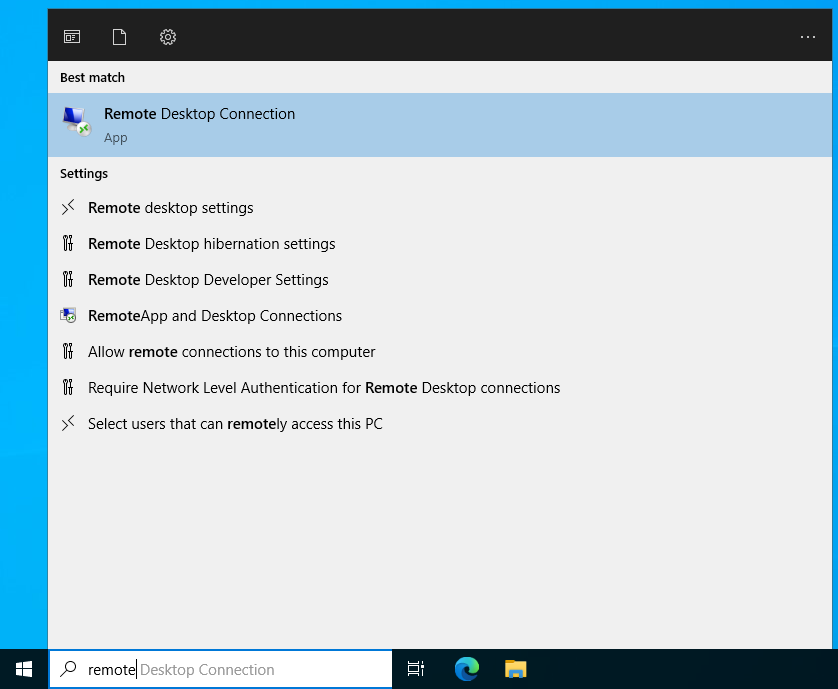
Click on the Windows Start Menu and search for "Remote Desktop". Open the app when it appears in the results.
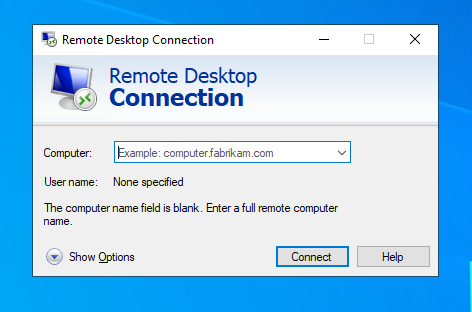
Once the app is open, click on "Show Options" in the bottom-left corner to reveal advanced connection settings.
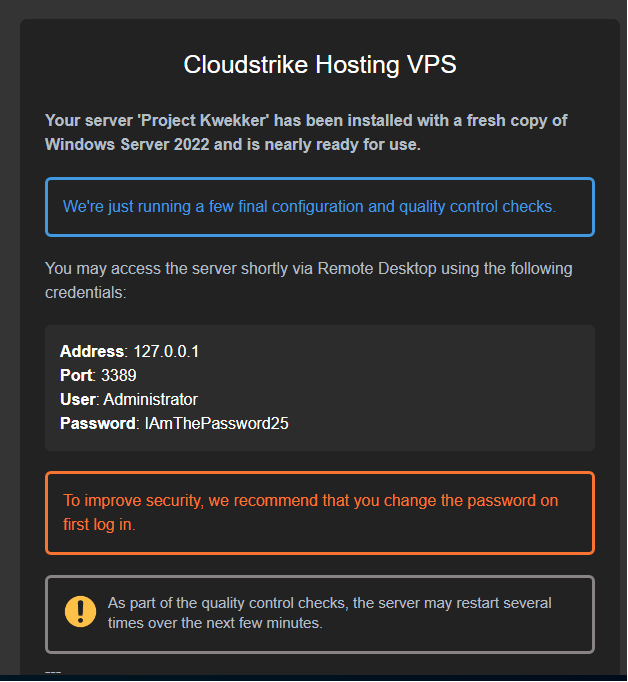
You can find the required IP address, username, and password in the email we sent you when your VPS was created.
In the "Computer" field, enter the IP address of your VPS, . For "Username", type Administrator.
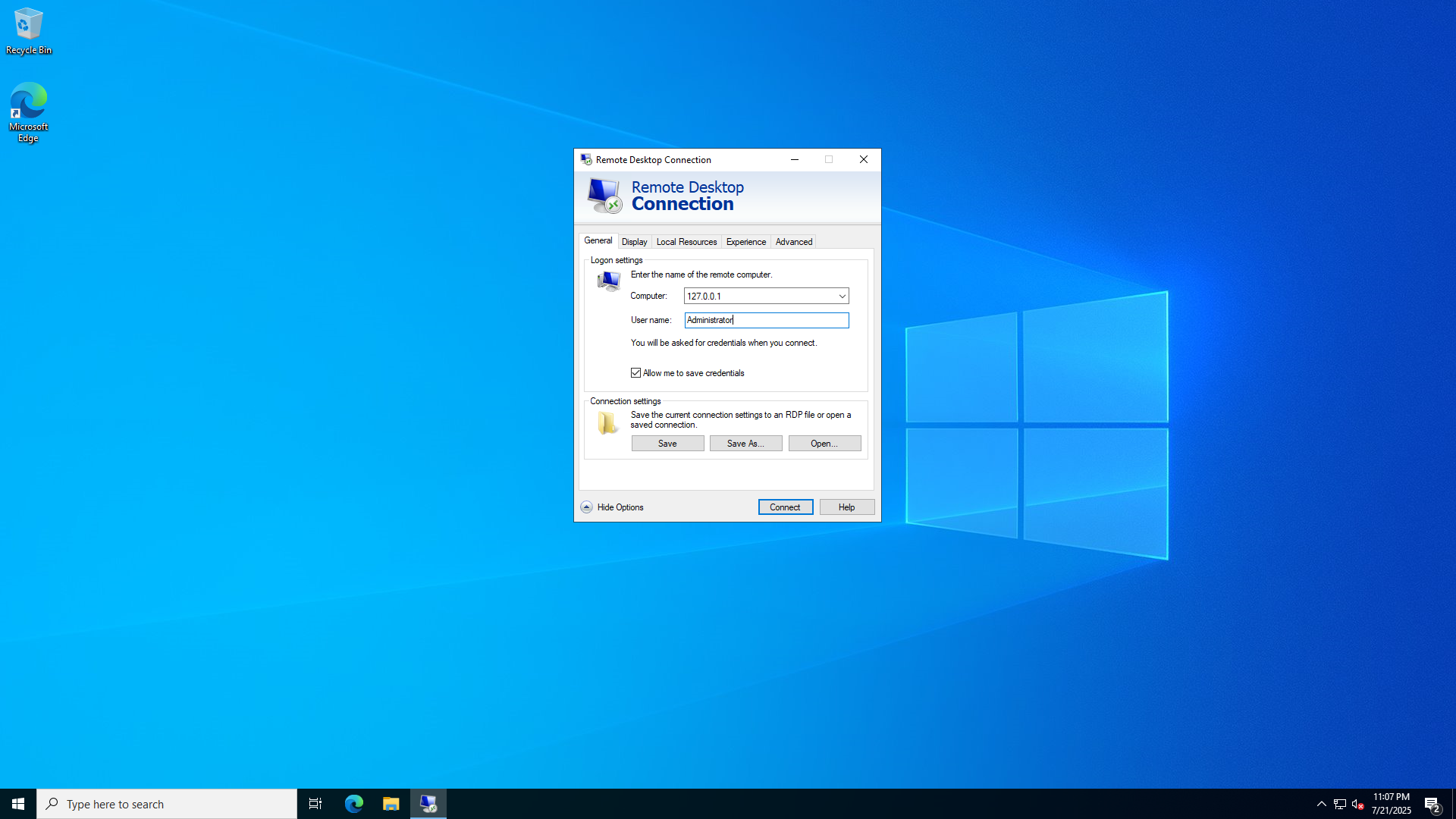
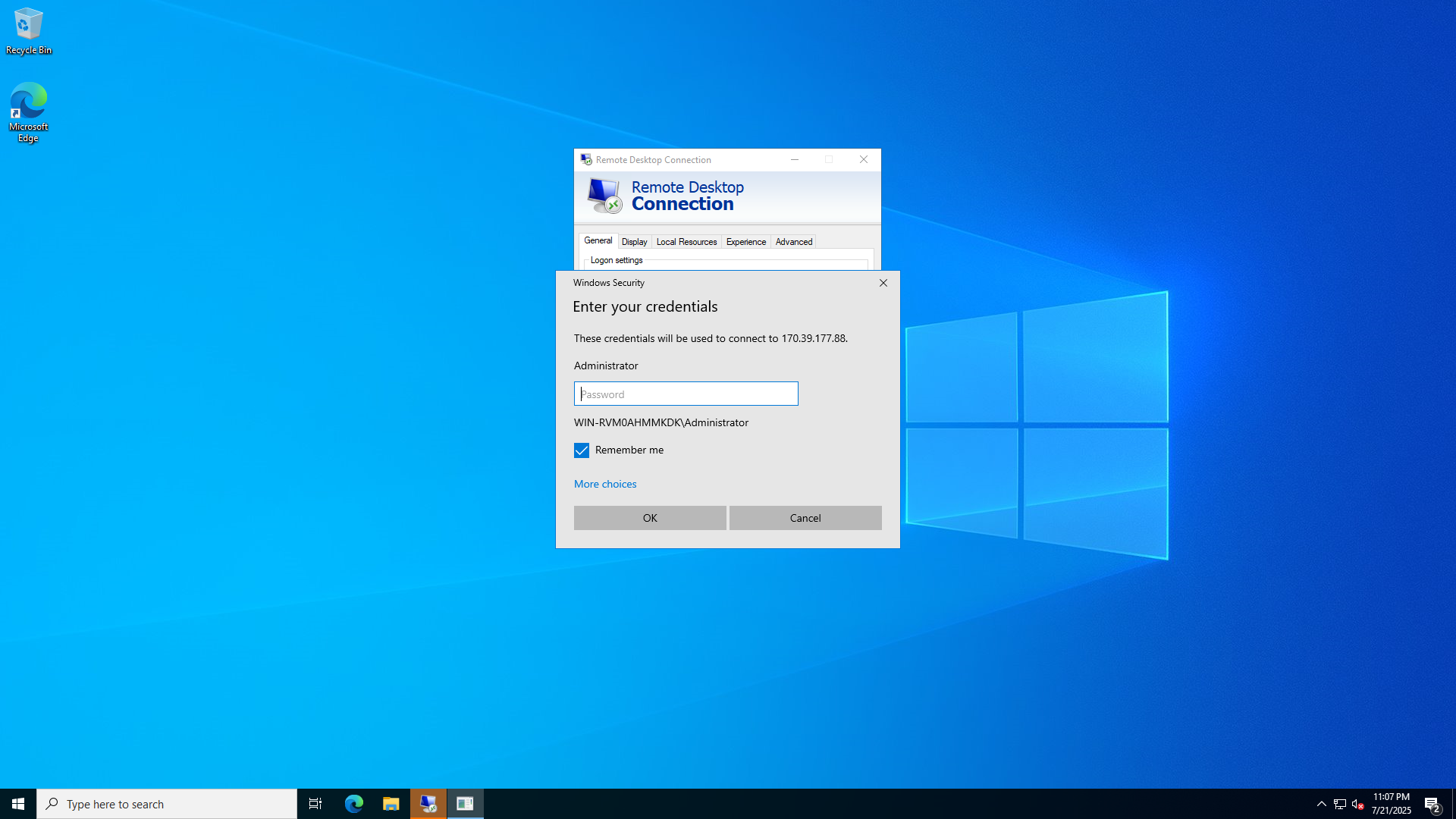
After clicking "Connect", you'll be prompted to enter the password from your email.
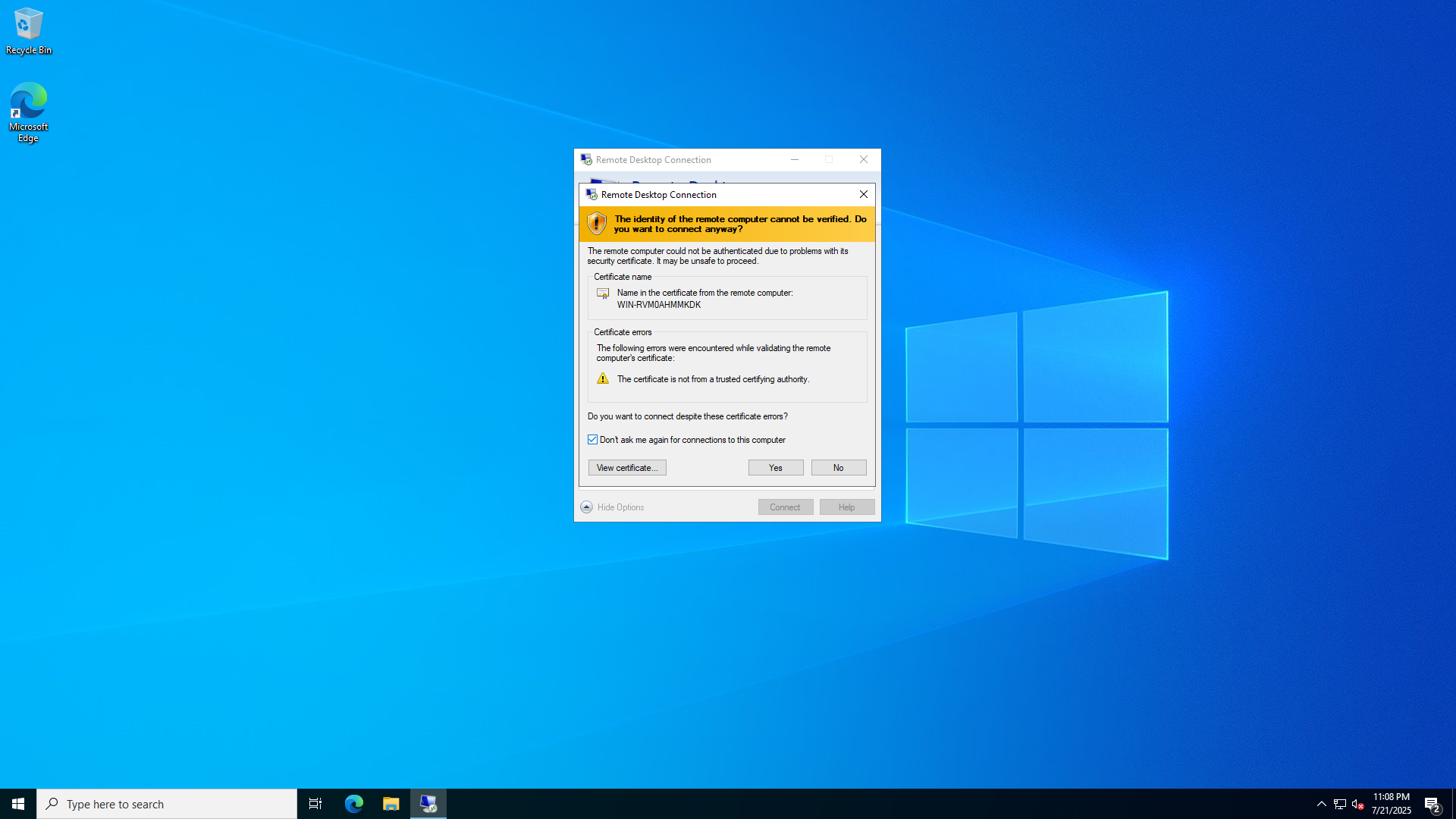
You may see a warning about the remote computer's certificate. Check the box for "Don't ask me again for connections to this computer" and click "Yes".
Back on the "Show Options" screen, click "Save As" to save your connection as a shortcut. This will make it easier to reconnect in the future without re-entering your details.
That's it! You should now be connected to your VPS and ready to work. If you have any issues, feel free to contact support.